
Log a UPI payment by sharing the screenshot
Paid on GPay, PhonePe or Paytm? Share the success screen to Spenrol and it fills in the amount, merchant and category. The screenshot is read on your phone. You don't type anything, and Spenrol doesn't need your SMS or bank login.
- Read on your phone
- No SMS access needed
- Free, no ads
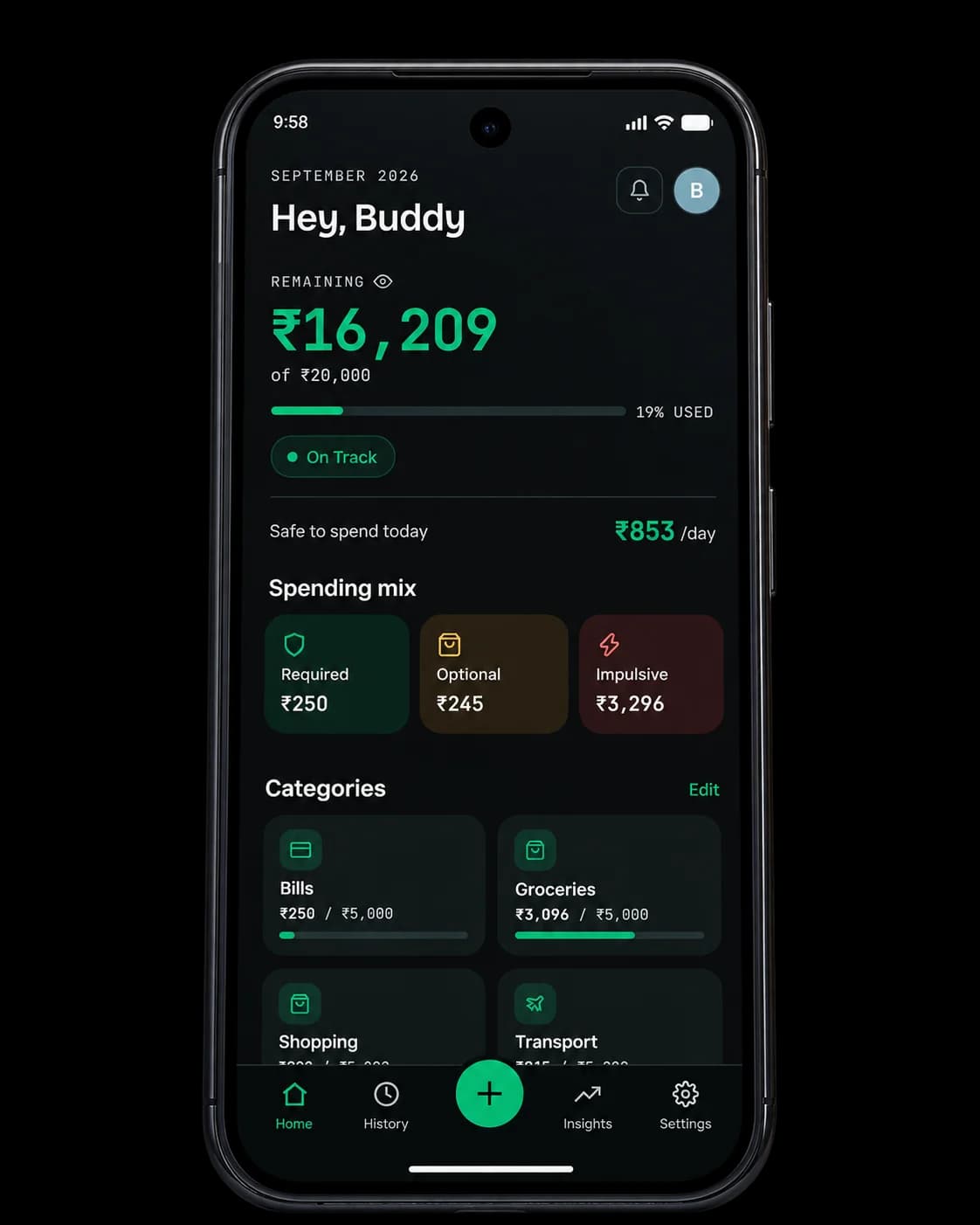
Zomato
Google Pay · 3 Sept 2026, 12:01 pm
Typing every spend is where most people give up
With manual trackers like Money Manager and Monefy you type the amount, the merchant and the category every time. It goes fine for a week. Then you skip one entry, then three, and by week two the numbers are out of date.
SMS-reading apps fix the typing by reading your whole inbox: OTPs, personal messages and delivery updates as well as bank alerts. Plenty of people aren't comfortable with that.
A screenshot sits in between. You're already on the payment success screen. One share and the details are filled in, and Spenrol only sees the image you chose to send it.
From payment to logged spend
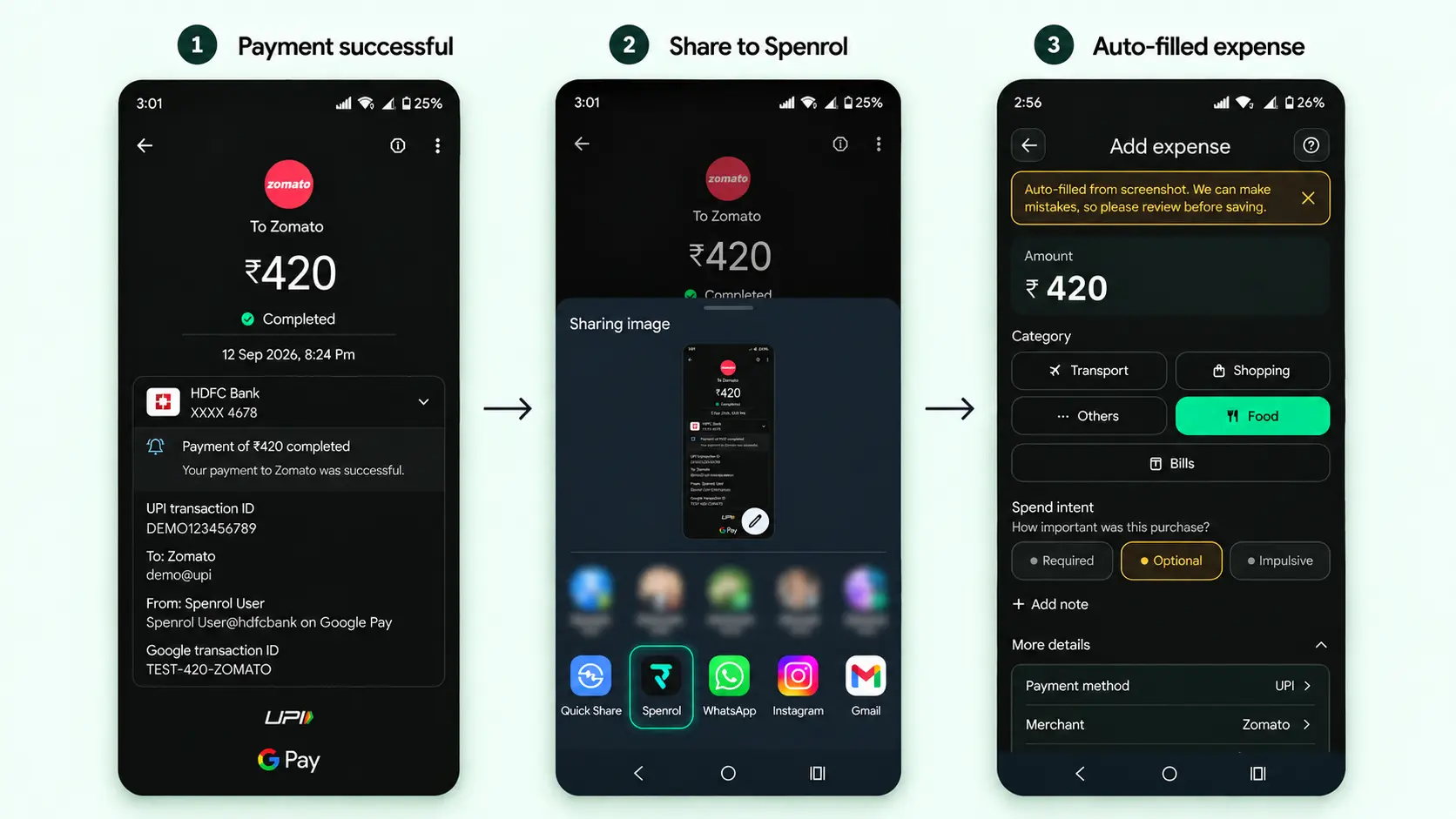
Pay and take a screenshot
Finish the payment on GPay, PhonePe or Paytm and screenshot the success screen, the same as you would to send it to someone.
Share it to Spenrol
Tap Share on the screenshot and pick Spenrol. You can also open it from your gallery inside the app, or share the confirmation text from your UPI app instead.
Check, tag and save
Amount, merchant and category are already filled in. Fix anything that’s wrong, tag it required, optional or impulsive, and save.
What gets filled in, and what you decide
Filled in for you
The amount, the merchant and a suggested category, read off the screenshot on your phone. You can change any of them.
Your call
Whether the spend was required, optional or impulsive. A screenshot can't tell Spenrol why you paid, so it never guesses.
Screenshot capture vs the alternatives
| Feature | Money Manager | Monefy | FinArt | Spenrol |
|---|---|---|---|---|
| How you log a spend | Type it in | Type it in | SMS auto-read | Share a screenshot |
| Typing required per transaction | Yes | Yes | No | No |
| SMS or notification access | Not needed | Not needed | Required | Not needed |
| Intent tags (required/optional/impulsive) | — | — | — |
See the full breakdown of Android expense trackers in our Android tracker comparison.
Common questions
Something else? Write to [email protected]
How does Spenrol read my payment screenshot?
It uses text recognition that runs on your phone. It picks the amount, payee and a likely category off the image and fills in a draft for you to review. The screenshot isn't uploaded to our servers or sent to anyone else.
What if the amount or merchant is read wrong?
Nothing saves until you confirm it. If a digit or merchant name comes out wrong, tap the field and fix it before saving.
Does Spenrol read all my photos, or just the one I share?
Only the one you share or pick. Spenrol doesn't scan your gallery in the background.
Which apps can I screenshot a payment from?
Google Pay, PhonePe, Paytm and super.money success screens are recognised. Other apps go through a general fallback, so check the fields before you save. You can always type a spend in instead.
Does screenshot capture replace SMS-reading apps like FinArt?
It saves you most of the typing without asking for SMS, email or notification access. FinArt reads your messages and logs everything automatically. With Spenrol you share each payment yourself, which takes a few seconds but means the app only sees what you give it.
Is Spenrol free?
Yes. Free on Android, no paid tier, no ads.
- downloads
- 200+
- expenses logged
- 1,500+
- of spending tracked
- ₹9.5L+
“Being able to classify expenses as Required, Optional, or Impulsive makes it easier for me to understand my spending habits. It also makes me think twice before spending on something impulsively.”
Share your next payment screenshot to Spenrol
Free on Android. No SMS access, no bank login.

Scan to download on your phone